
When searching for free icon download sites for my design projects, I've run into quite a few licensing pitfalls. There are many free icon websites online that appear to offer a wealth of resources, but some say “free download” only to reveal that a membership is required for commercial use once you click through; others provide free icon assets without clearly specifying copyright and licensing terms. In this post, I've compiled a list of the best free icon websites and free icon libraries I frequently use, organized into three categories based on licensing type, with detailed explanations of which icons can be used for free in commercial projects and which require attribution.
 2026-11-17
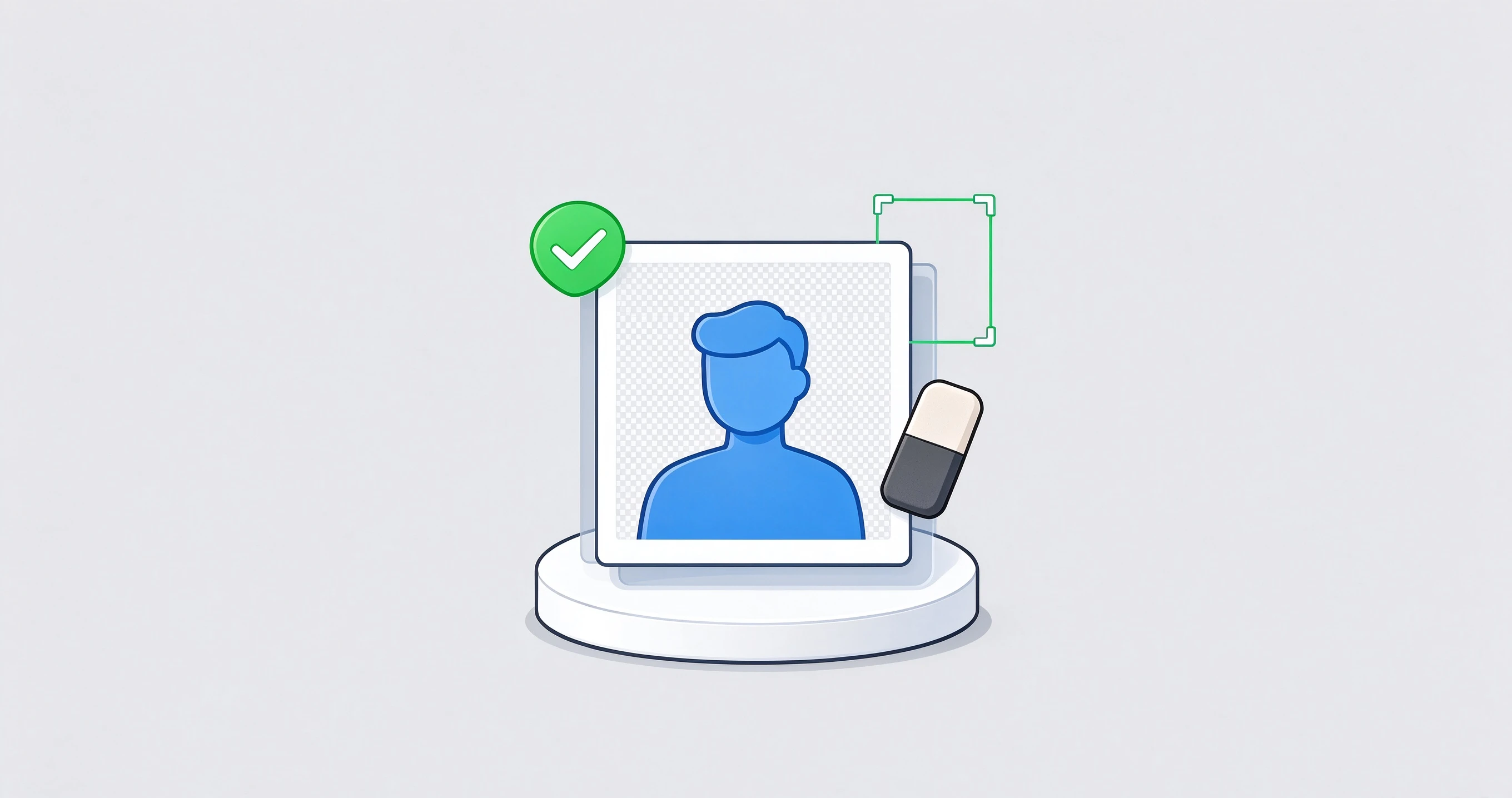
A while back, I helped a friend with a product photo. The photo itself turned out pretty well, but the background was a bit cluttered. I wanted to remove the background and replace it with a clean, transparent white background. I thought it would be easy. But when I opened the first website, uploaded the image, and waited for what seemed like forever, a message popped up when I tried to download it: “You have to pay for high-resolution images.” I tried another tool. It claimed to remove backgrounds for free, but the resulting image was pitifully small—when I put it on the product page, it was completely pixelated.
2026-10-17

I’d like to recommend a local photo management tool: Lap. It’s designed for family photo albums, photography enthusiasts, and large local media libraries starting at 100,000 photos. It doesn’t use the cloud, doesn’t force uploads, and doesn’t lock you into its system—all browsing, searching, organizing, and deduplication are done right on your own computer. Shortly after its launch, it garnered over 3.7k stars on GitHub, making it one of the hottest new projects in local photo management recently.
2026-10-14

A few days ago, I was helping a friend upload a product image when a red message popped up on the website saying the file was too large—the image was 4 MB, and my friend was really panicking. I told him not to worry; I opened my browser, dragged the image onto a webpage, and within three seconds, it was compressed to 300 KB with virtually no loss in image quality. My friend asked what tool I used. There are actually several good image compression websites out there, so I’m sharing them today. 1. Squoosh Website URL: ht
2026-10-01
When working on website operations and design, I often encounter issues related to image format conversion. After trying out various online tools, I’ve identified three excellent websites for converting image formats. Each of these tools has its own unique features and can handle general format conversions, vector image conversions, and large file processing. You can choose the one that best suits your needs. JinaConvert Website: https://jinaconver
2026-07-26
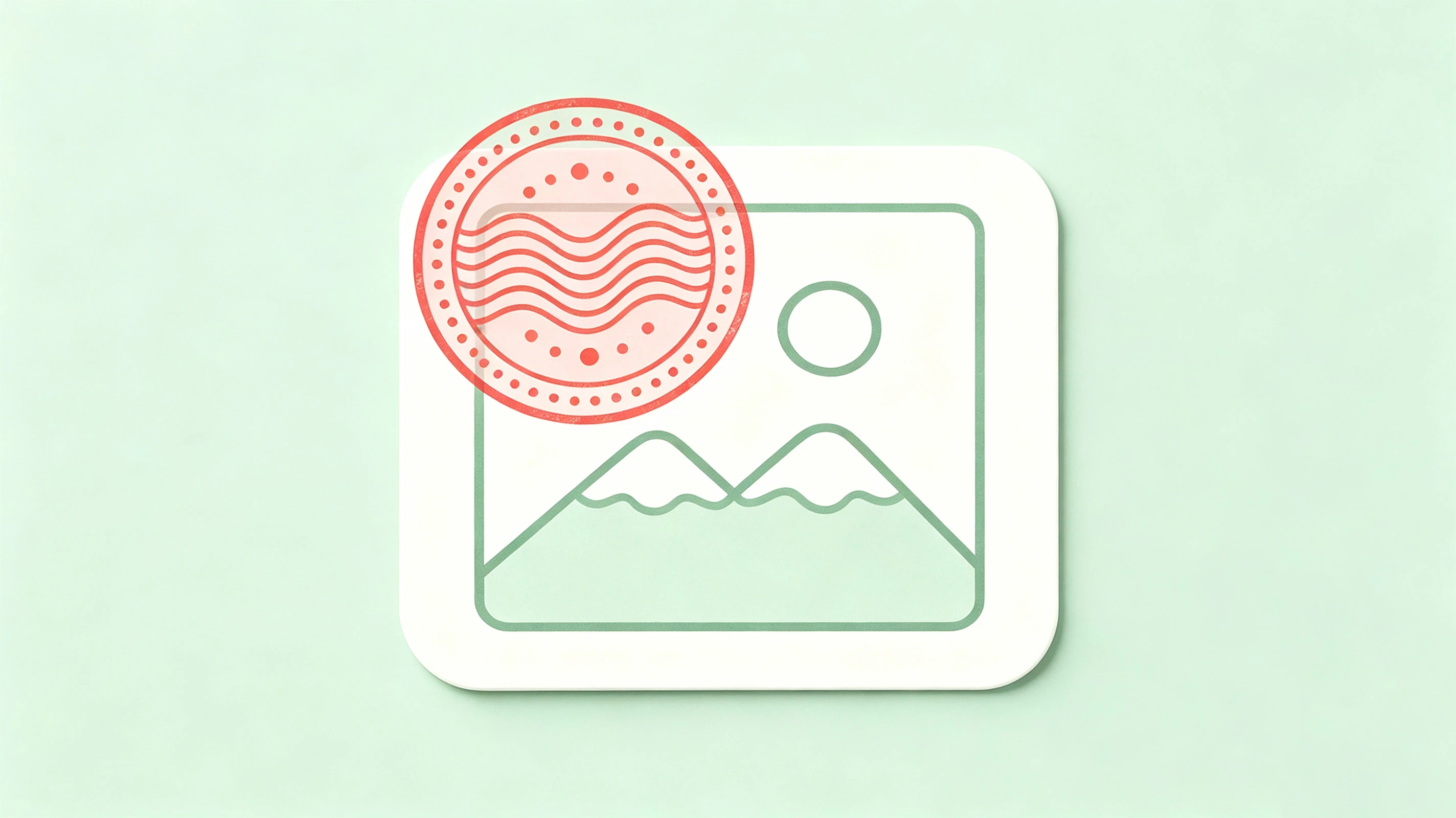
In our day-to-day website operations, e-commerce product launches, or brand promotion efforts, we often need to add brand logo watermarks to large numbers of real-life photos and product images. Processing them one by one in Photoshop is too inefficient, and many of the tools available on the market either severely compress image quality or don’t support complex tiling and rotation. To completely solve this pain point, I developed a desktop graphical application called Watermark using Rust and egui.
2026-06-28
I often need to edit images. In the past, I always relied on the desktop version of Photoshop. However, as everyone knows, the cost of using a genuine copy of Photoshop is quite high, the installation file is large, and both downloading and updating it can be a hassle. Later, I started looking into lightweight photo-editing options, and recently I’ve been testing a number of websites that let you use Photoshop online. These free online Photoshop tools require no software installation—you can use them right in your browser.
2026-06-10
In my day-to-day website operations, I often encounter files such as PNGs and JPGs that need to be converted to WebP format to speed up page loading. Converting them one by one is very tedious, so I developed a simple tool that allows for convenient batch conversion between PNG, JPG, WebP, GIF, and other common image formats while preserving the original folder structure. For those who need an online tool to convert PNG to WebP
2026-05-24

When creating website directories, organizing resources, or batch archiving, you’ll always run into the same issue: saving the favicons from dozens or even hundreds of websites. Manually opening each website one by one and right-clicking to save the favicon can take half an hour for just a few dozen domains. This little tool is designed to solve this problem—just give it a list of domain names, and it will batch-download the icons and name them according to the domain names. Its implementation differs from common favicon scraping scripts in that
2026-04-20