I often need to edit images. In the past, I always relied on the desktop version of Photoshop. But as everyone knows, the licensed version of Photoshop is expensive, and the installation package is several gigabytes—making it a hassle to download and update. Later, I started looking into lightweight photo-editing options. Recently, I’ve been testing a large number of websites that let you use Photoshop online. These Photoshop online tools are completely free—you can use them right in your browser without installing any plugins. As long as your images don’t contain personal information or trade secrets, they’re a really convenient way to quickly edit photos. Below is a list of these websites:
List of Photoshop Online Tools Websites
| Website Name | Website |
|---|---|
| pic.net Online Photoshop | https://www.pic.net/ps/ |
| zaixianps.cc Online Photoshop | https://www.zaixianps.cc/ps/ |
| Gaoding Design Online Photoshop | https://ps.gaoding.com/ |
| Image Editor: Online Photoshop | https://tugaigai.com/online_ps/ |
| bmcx Online PS | https://ps.bmcx.com/ |
| web-ps Minimalist Online Photoshop | https://web-ps.net/ |
The User Interfaces of These Websites
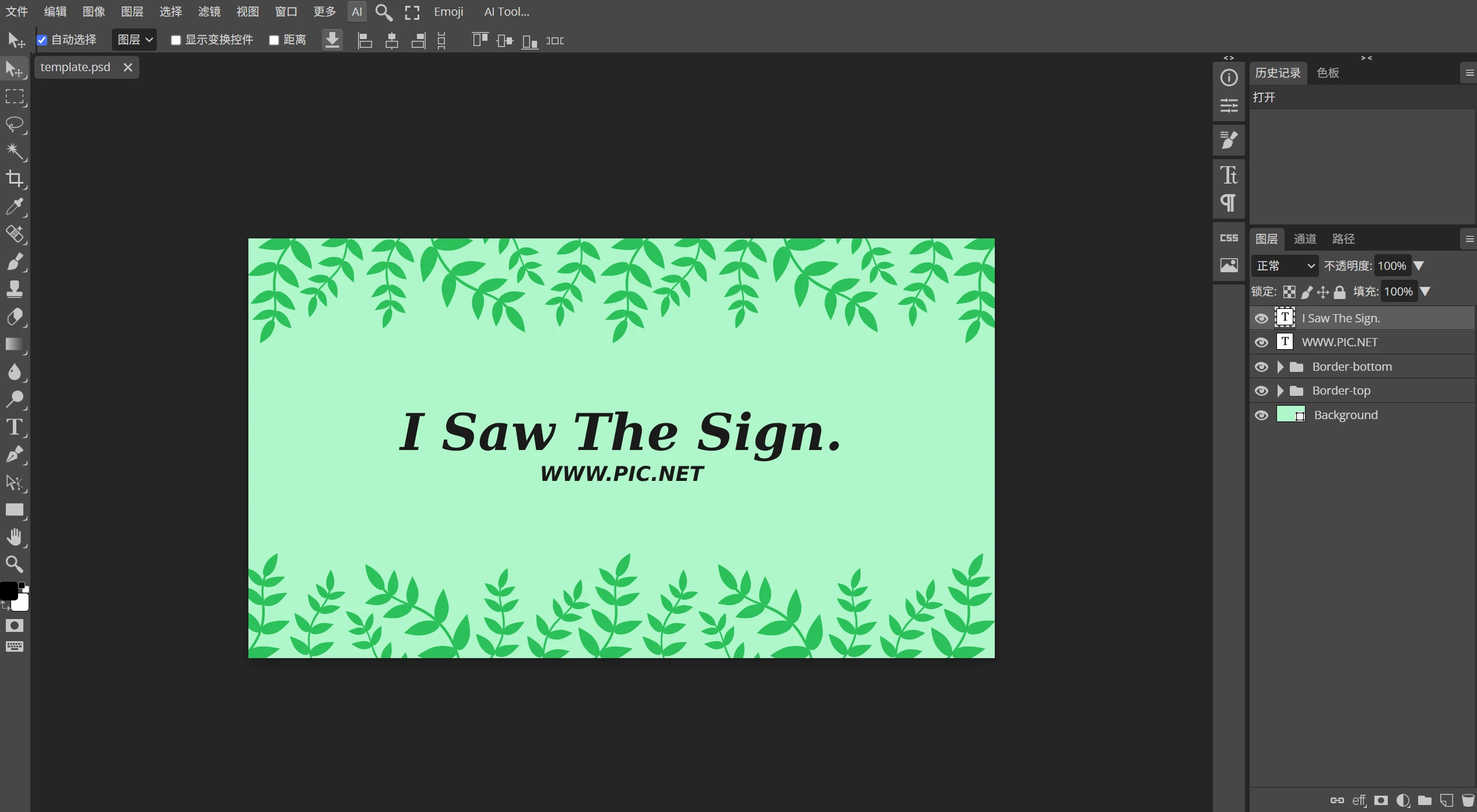
Let’s start by discussing what these websites have in common. Almost every online Photoshop tool mimics the interface of the desktop version of Photoshop. On the left is the toolbar, which, from top to bottom, includes tools such as Move, Selection, Crop, Brush, and Eraser; on the right is the Layers panel, where you can adjust layer positions and opacity; at the top is the menu bar, featuring functions like Filters, Image Adjustments, and Text. For someone like me who’s already used the desktop version of Photoshop, there’s virtually no learning curve—if you’re familiar with the desktop version, you can get started in just a few minutes, and it meets over 80% of my daily work needs. For example, adjusting image brightness and contrast, correcting color casts in photos, applying blur or sharpen filters, and adding text captions—all these operations can be completed right in the web browser.
I also specifically tested PSD file compatibility. Among several online Photoshop alternatives, I was able to open my local PSD source files without any issues—the layers remained intact, and the text was editable again, which was a pleasant surprise. I also compared several Photoshop online tools for PSD compatibility. Each of these online Photoshop alternatives has its own unique features. Gaoding Design’s online Photoshop comes with a large number of built-in templates and assets, making it particularly suitable for creating Xiaohongshu covers or e-commerce main images; its toolbar includes many additional marketing-related functions; Meanwhile, zaixianps.cc and pic.net offer a high degree of fidelity, functioning almost identically to the real Photoshop—even some keyboard shortcuts work; bmcx loads very quickly, and I experienced no lag during repeated use. Web-PS stands out from the rest. Its interface is clean and straightforward, offering only the most basic functions—layers, text, cropping, zooming in and out—and nothing else; it doesn’t even have filters. However, I actually prefer it because of its simplicity and speed—it’s ready to use the moment you open it, taking just 3 seconds to load. If you just need to add an arrow and some text to an image, Web-PS is the most convenient option.
Test Results Using a Low-Spec Computer
Let me share my hands-on experience. I used an old computer with a Celeron processor that cost about 1,000 yuan and uploaded a 5MB product photo. I used the Magic Wand tool to select the background, clicked “Delete,” and the background became transparent. Next, I created a new layer, filled it with white, typed in the product name, adjusted the font and size, and finally exported it as a PNG. Throughout the entire process, I didn’t notice any significant lag; the web app isn’t very CPU-intensive, and the exported image’s resolution wasn’t reduced. I also tried processing a 30MB TIFF image; the loading speed was slightly slower, and there was a delay of about half a second in the toolbar’s response. This shows that the performance of online photo editors is affected by file size and internet speed. For large composite images in the hundreds of megabytes, these web-based tools might not be up to the task. However, they’re more than sufficient for editing everyday photos.
I need to remind you about safety.
The process of using an online Photoshop editor requires uploading images to a remote server. Although website operators generally have no malicious intent, it’s still not recommended to upload private photos such as ID cards, bank cards, or contracts. Personally, I only use it to edit publicly available images from the internet or casual snapshots of daily life. If you regularly handle confidential information, I recommend using a genuine, locally installed version of Photoshop.Having clarified this point, I’ve found that online Photoshop can indeed simplify many steps. For quick image editing, Photoshop online is often more convenient than installing desktop software. There’s no need to wait for a large software program to load before editing—you can simply click a link in your browser bookmarks to start working immediately, and the entire process usually takes only about a minute.