
A few days ago, I was helping a friend upload a product image when the website popped up a red message saying the file was too large—the image was 4 MB, and my friend was really freaked out. I told him not to worry, had him open his browser, and dragged the image onto a webpage. Three seconds later, it was compressed to 300 KB, with almost no noticeable difference in image quality. My friend asked what tool I used. There are actually several great image compression websites out there, so I’m sharing them today.
1. Squoosh
Website address: https://squoosh.app/
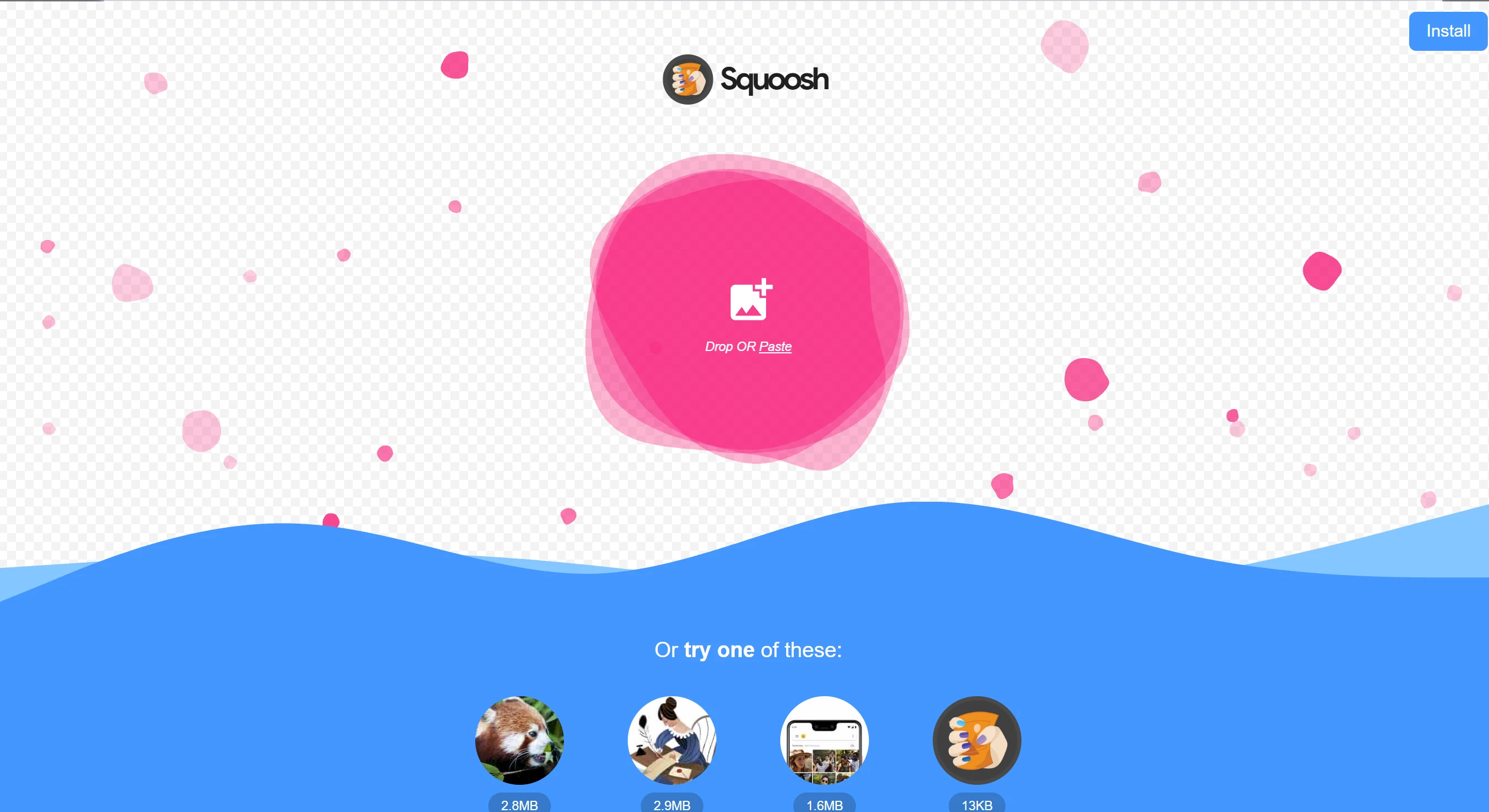
Squoosh is the tool I use the most. It’s a web-based tool developed by Google; you can use it right in your browser without having to sign up for an account, and you don’t have to worry about your images being uploaded to someone else’s server—all compression is done on your local computer.
After dragging an image into the tool, the original image appears on the left and the compressed version on the right. You can drag the line in the middle to compare the changes in image quality. This feature really puts my mind at ease because I can see for myself whether the image quality has deteriorated. Squoosh supports JPEG, PNG, WebP, and AVIF formats. I usually set the quality between 75 and 85—the file size is noticeably smaller, and the image quality remains quite good.
Squoosh is better suited for processing single images. If I need to compress dozens of images at a time, I’ll switch to a different tool.
2. TinyPNG
Website address: https://tinypng.com/
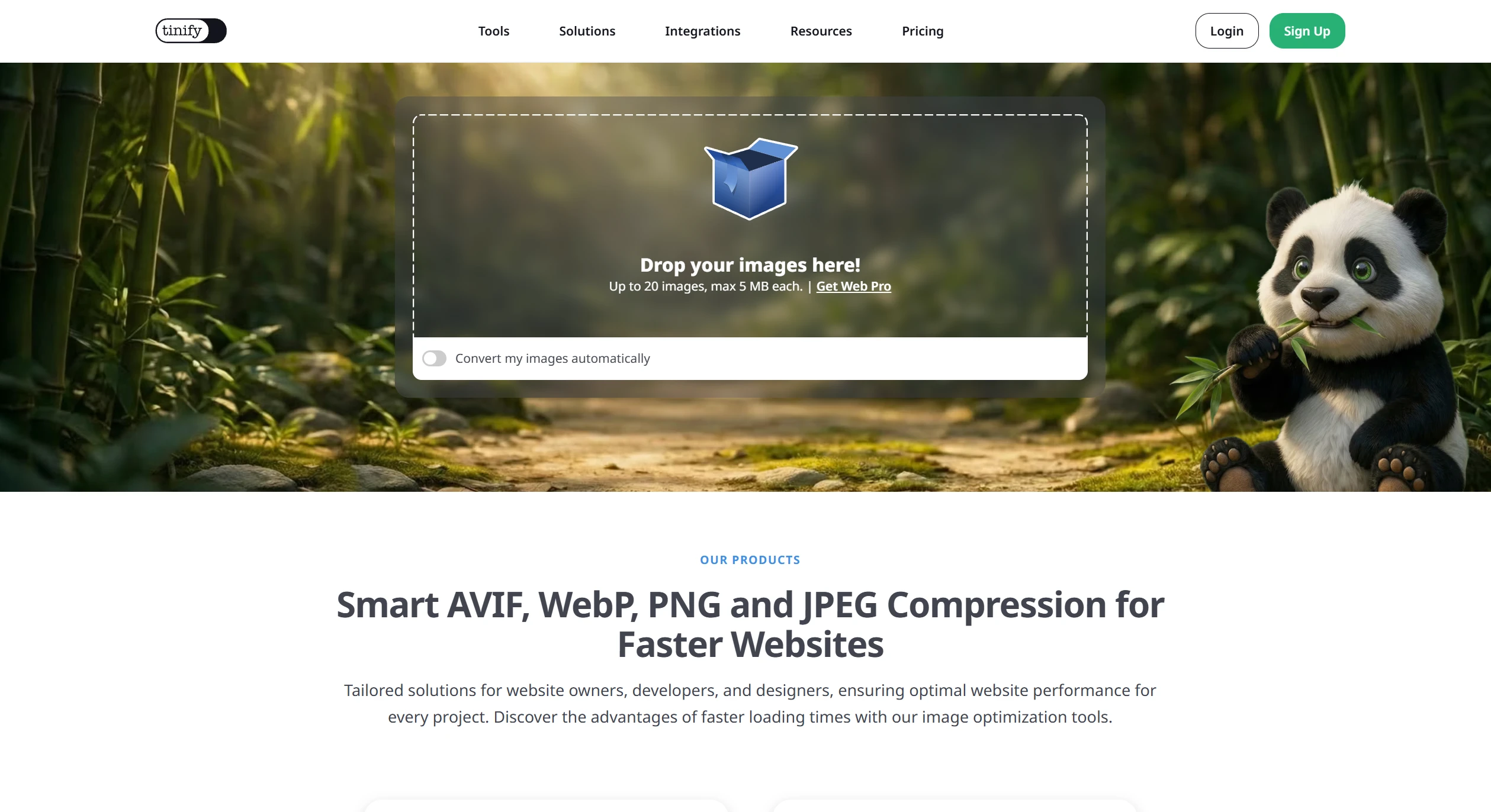
TinyPNG is the first image compression website many people encounter. Its intelligent compression technology is very mature, reducing file sizes by 80% with virtually no noticeable loss in image quality. Usually, you can simply drag and drop images onto the page for automatic processing; you can upload up to 20 images at a time, with each image not exceeding 5 MB.
The interface is very simple—there’s no need to adjust any settings; it automatically finds the best compression settings. It also offers a WordPress plugin and an API, which can save you a lot of trouble if you have your own website.
3. Make the Picture Smaller
Website address: https://picsmaller.com/en-US
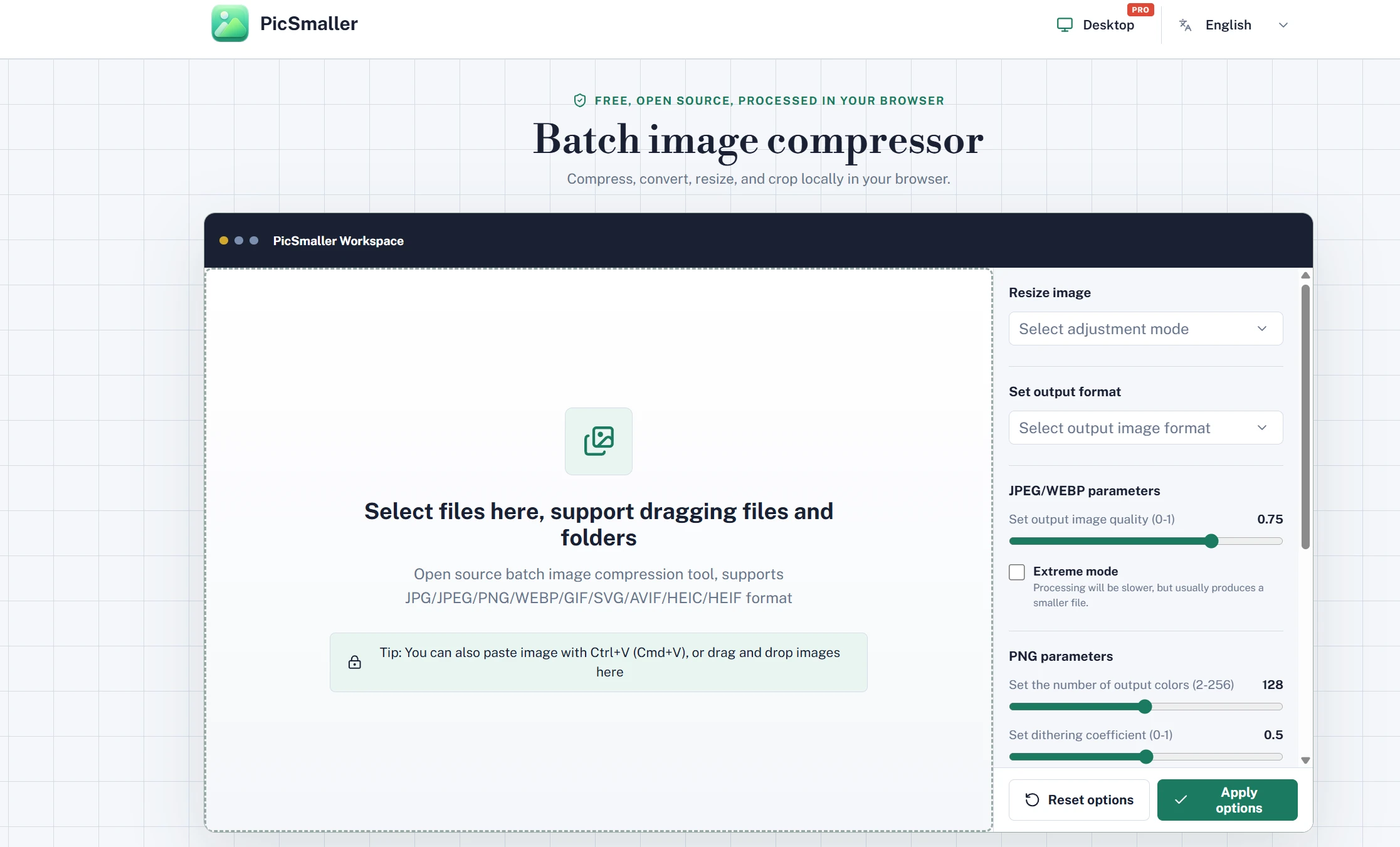
Pic Smaller is a great tool I recently discovered—a completely free, open-source project that supports batch compression of JPG, PNG, WebP, GIF, SVG, and AVIF files.
Just open the webpage, drag your images into it, and it starts working—no setup required. The details remain sharp even after compression, and you can even drag entire folders right in. It’s very useful for anyone who needs to process large numbers of images.
4. Image Compressor
Website address: https://imagecompressor.com/
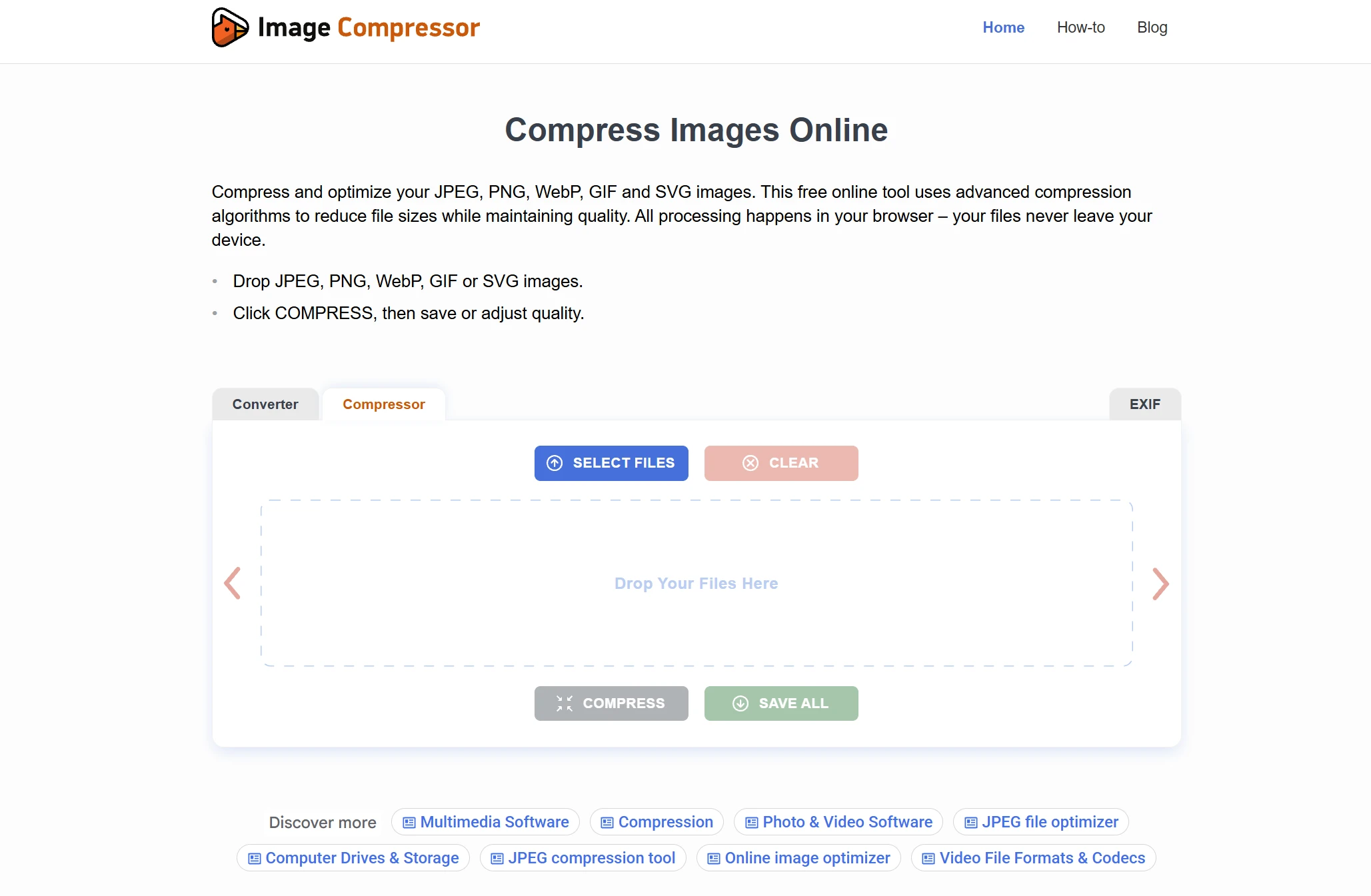
Optimizilla has a very detailed image compression settings panel that puts the control in the user’s hands. After uploading, there’s a quality slider on the right that lets you adjust the compression level yourself and see the results as you drag it—even when compressed down to 77%, there’s no noticeable difference to the naked eye. It supports up to 20 images at a time, which is plenty for everyday use.
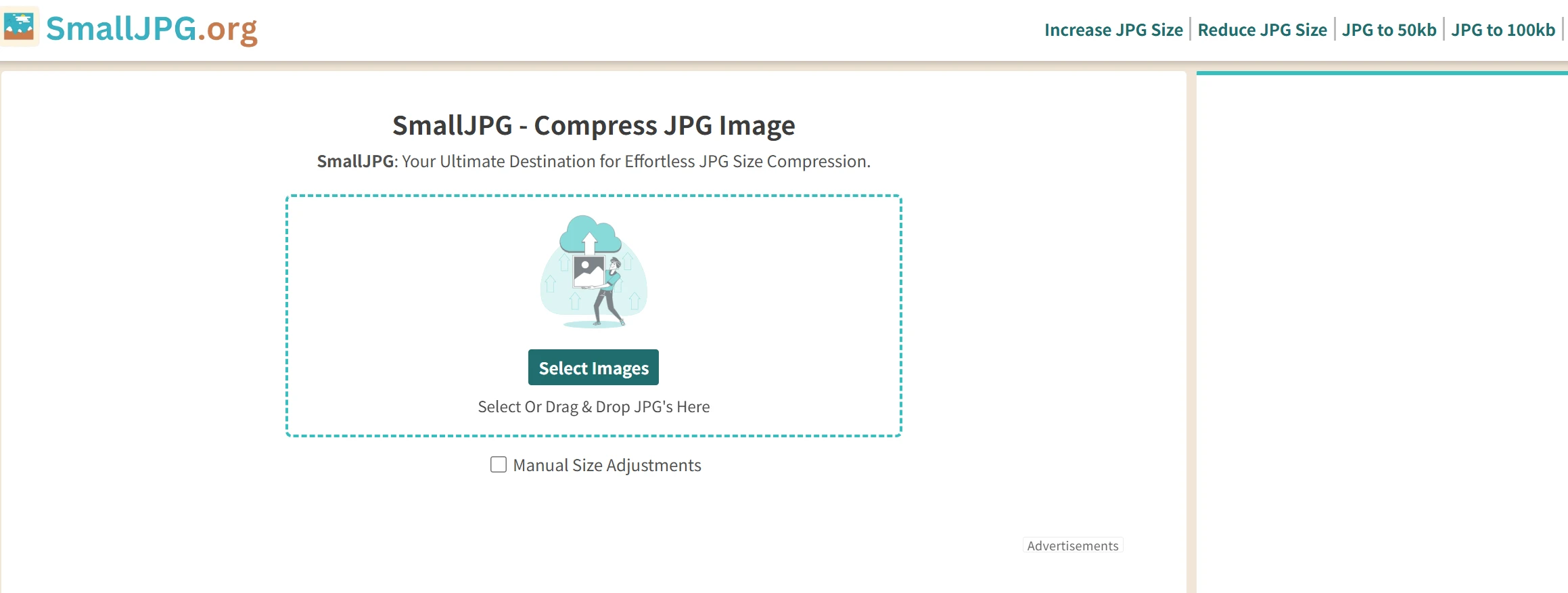
5. SmallJPG
Website address: https://smalljpg.org/
One unique feature of SmallJPG is that you can directly specify the target file size after compression—for example, 50 KB, 100 KB, or 200 KB. Since you often encounter size limits when submitting application forms or uploading ID photos, this feature allows you to meet those requirements precisely. The process is very simple: upload an image, select your target size, click “Compress,” and download.
6. shaoapp
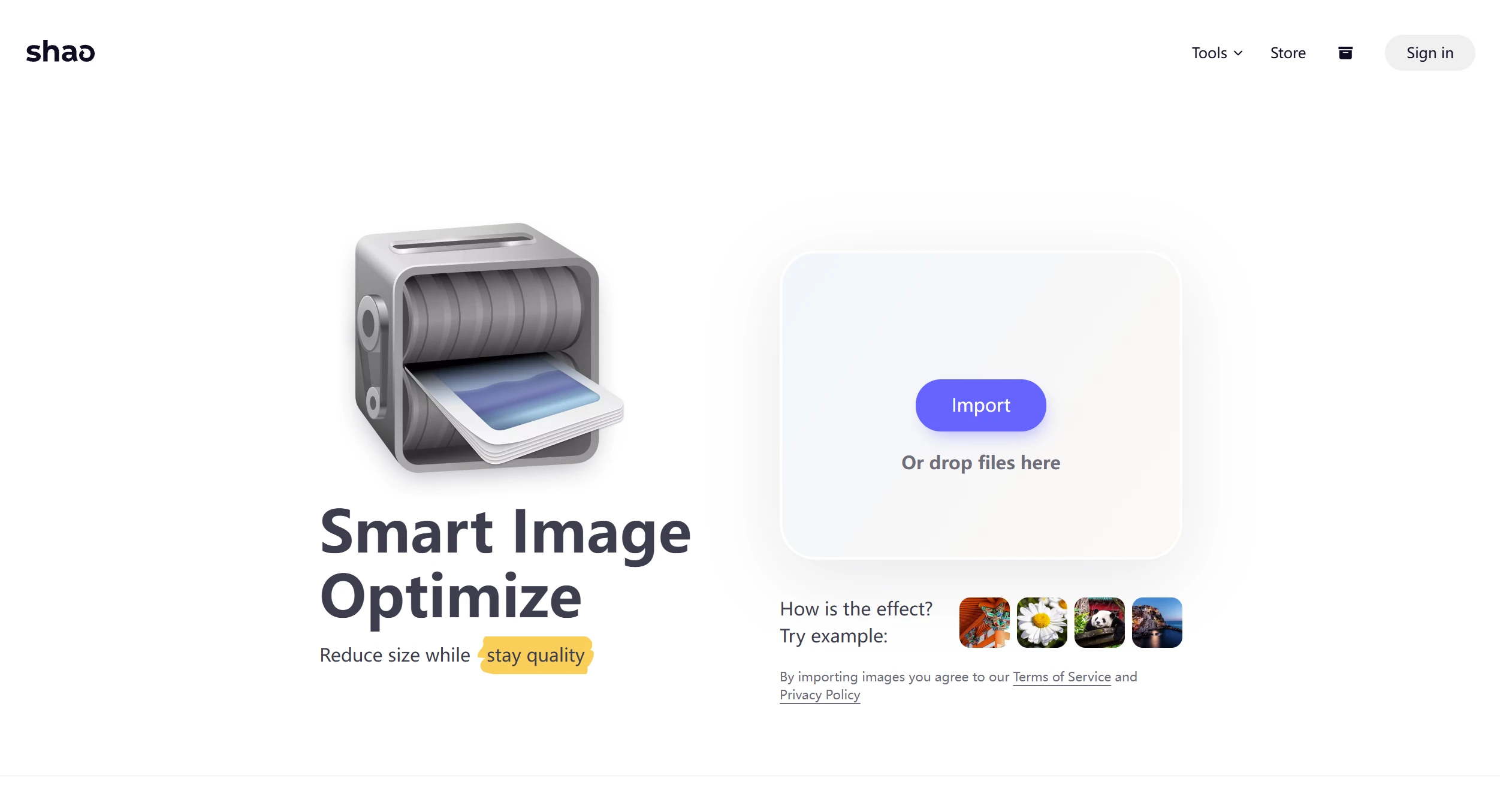
Website address: https://shaoapp.com/en/image
shaoapp.com offers a wider range of features—it doesn’t just compress images, but also provides AI-powered image cropping, watermark removal, and photo editing. It supports compression for multiple formats, including PNG, JPG, GIF, and SVG. Whenever I encounter complex image tasks, I turn to it—and its batch compression feature is really handy, too.
How do you choose a website?
For quick compression of one or two images here and there, I use Squoosh—I value its privacy protection; for batch processing, I use Pic Smaller or TinyPNG; to compress images to a specific size, I use SmallJPG; and for image cropping or removing watermarks, I turn to SHAO. Each tool has its own strengths, and I’ve saved them all in my browser bookmarks—feel free to give them a try when you need them.