I often tinker with browser extensions, and I’ve run into a problem: it’s not easy to find Chrome extensions in China, so I’ve bookmarked a few useful download sites myself. In this article, I’ll share with you five Chrome-based browser extension stores that I use regularly. I’ll briefly introduce the features of each site, then focus on what everyone cares about most: how to install and uninstall CRX files. Whether you use Chrome, Edge, or another browser, you’ll have it figured out by the end of this post.
Minimalist Plugin: Clean interface, fast downloads
Website:https://chrome.zzzmh.cn

The first thing that drew me to this site was its clean design. The entire page is free of cluttered ads. Most of the extensions on this site are sourced directly from the official Chrome Web Store. They provide the CRX files directly, with a large download button. Just click it to get the file. This site is especially great for beginners. You don’t need to register or log in. Just find the extension you want and download it right away. The categories are clearly organized, with sections like "Featured" and "Recently Updated."
Sketchbook: Fresh content, quick feedback
Website:https://huajiakeji.com
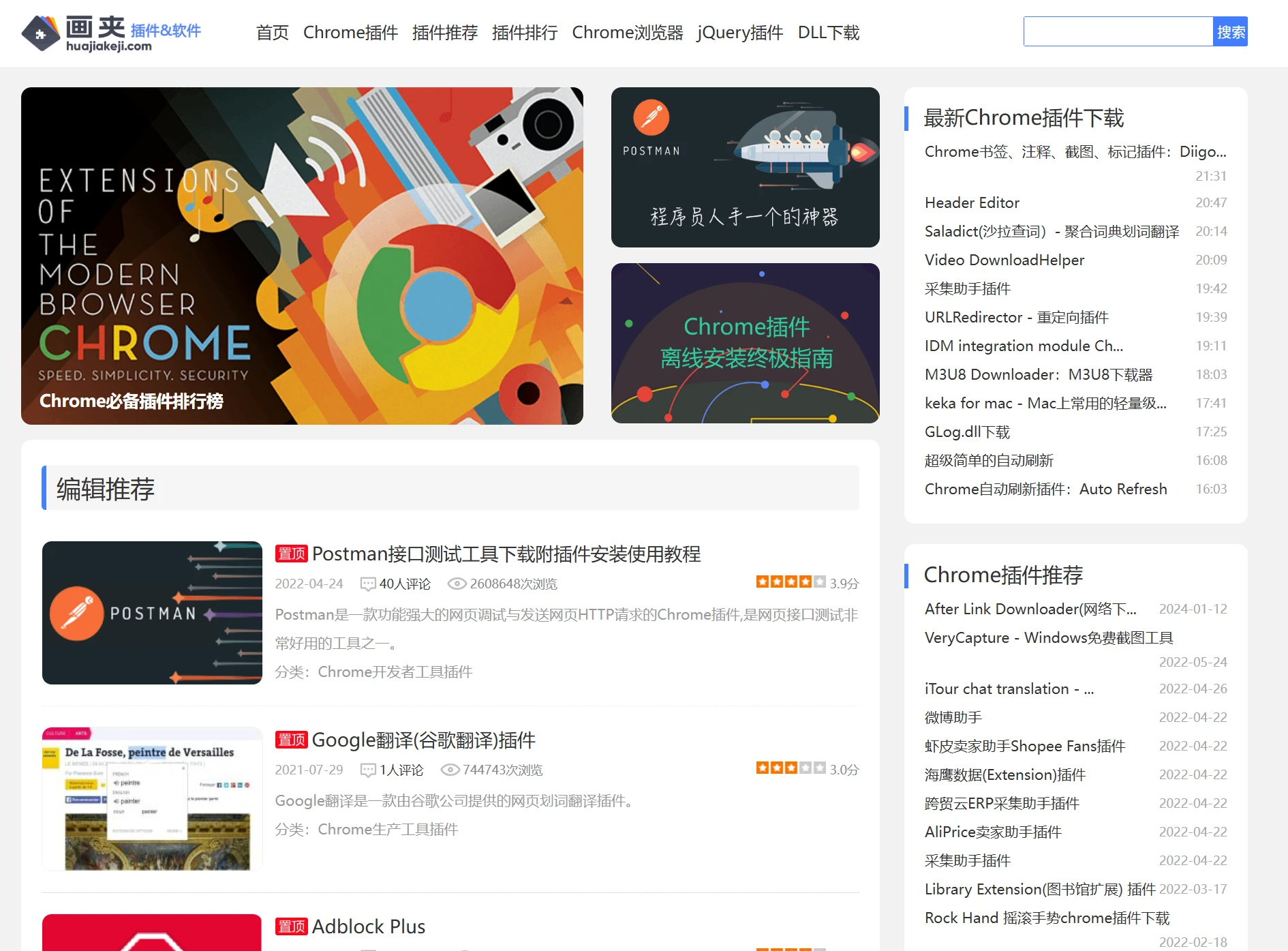
This site really left an impression on me. The site owner seems pretty diligent—many new extensions that have just been released in the Chrome Web Store show up here very quickly. In addition to Chrome extensions, you can also find some for Edge and Firefox here. The site’s design is a bit like early tech forums—very simple. Each extension comes with installation instructions, and it specifies which Chrome versions the CRX file is compatible with. If you’re using an older browser version, this is a great place to find older versions.
Crx Soso: Large database, supports multiple platforms
Website:https://crxsoso.com
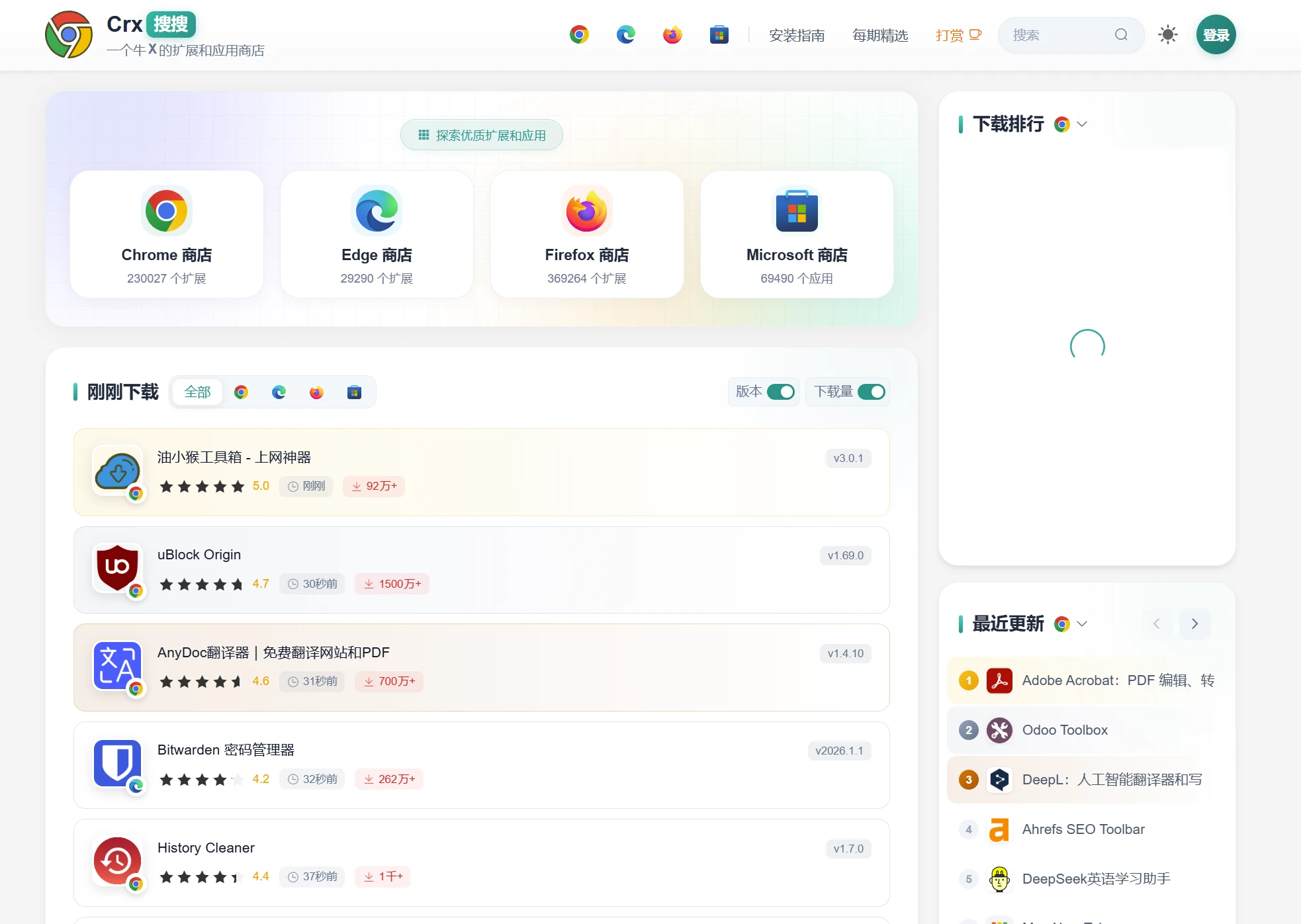
This site has a massive amount of data. I took a look, and it aggregates several different stores. It lists over 220,000 Chrome extensions alone, and there are nearly 30,000 for Edge. It even integrates apps from the Firefox Store and the Microsoft Store. The CrxSoso homepage features a "Recently Downloaded" list. You can see what others downloaded just seconds ago. Popular extensions like uBlock Origin and AdGuard have download counts in the tens of millions. This site also lets you download older versions. When some extensions stop working after an update, I come here to find an older version to reinstall. If you log in with an account, you can also bookmark extensions and view your browsing history. That’s pretty convenient.
Plugin Hut: Detailed Categories, Plenty of Tutorials
Website:https://chajianxw.com

This site is known for its highly detailed categorization of extensions. It not only features standard categories like "Workflow" and "Developer Tools," but also lifestyle categories such as "Health," "Travel," and "Automotive." Sometimes when I’m looking for some fun extensions, I come here to browse. Each extension page on Plugin House is described in great detail. It not only provides a download link but also explains how to configure the extension and what its keyboard shortcuts are. For those new to browser extensions, the tutorials here are quite user-friendly.
Microsoft Edge Add-ons Store: The Official Channel for Direct Installation
Website:https://microsoftedge.microsoft.com/addons

This is Microsoft’s official Edge Add-ons Store. Strictly speaking, it’s not a third-party download site—it’s Microsoft’s own store. If you’re using the Edge browser, just open this website, find the extension you want, and click the "Get" button; it will install automatically. You don’t have to deal with CRX files at all during the process.
There’s a lot available on the Edge Store right now. Since Edge and Chrome share the same engine, most of the popular extensions on Chrome are available here as well. I’m including this because many people don’t realize that you can actually install extensions from the Chrome Web Store directly in Edge. But since there’s an official channel, it’s certainly more convenient to install them directly from here.
How to Install CRX Files
The files downloaded from the five third-party websites listed above all have the .crx extension. How do you install these files? I’ll explain the process for both Chrome and Edge.
Install in the Chrome browser
Chrome now has stricter restrictions on CRX files downloaded from third-party sources. You can't simply double-click the file to open it. Here are the correct steps:
1. First, open the Chrome browser. In the address bar, type chrome://extensions/, then press Enter.
2. You'll be taken to the Extensions management page. Enable "Developer Mode" on this page. The toggle is usually in the upper-right corner. Once enabled, several new buttons will appear at the bottom or in the upper-left corner of the page.
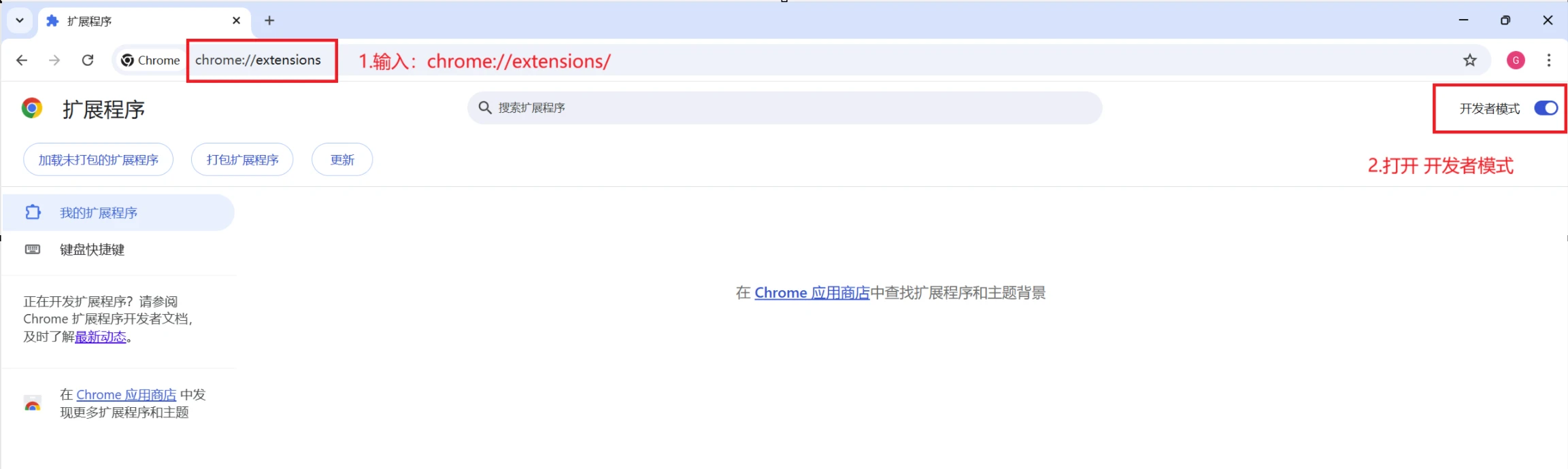
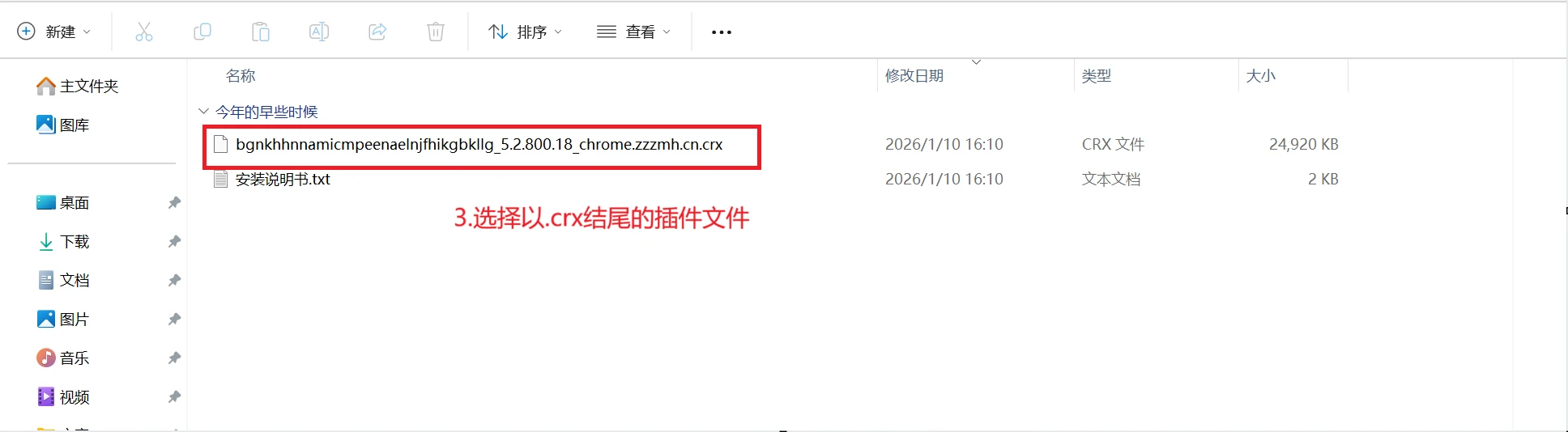
3. First, drag the downloaded CRX file from the folder onto this extension page.
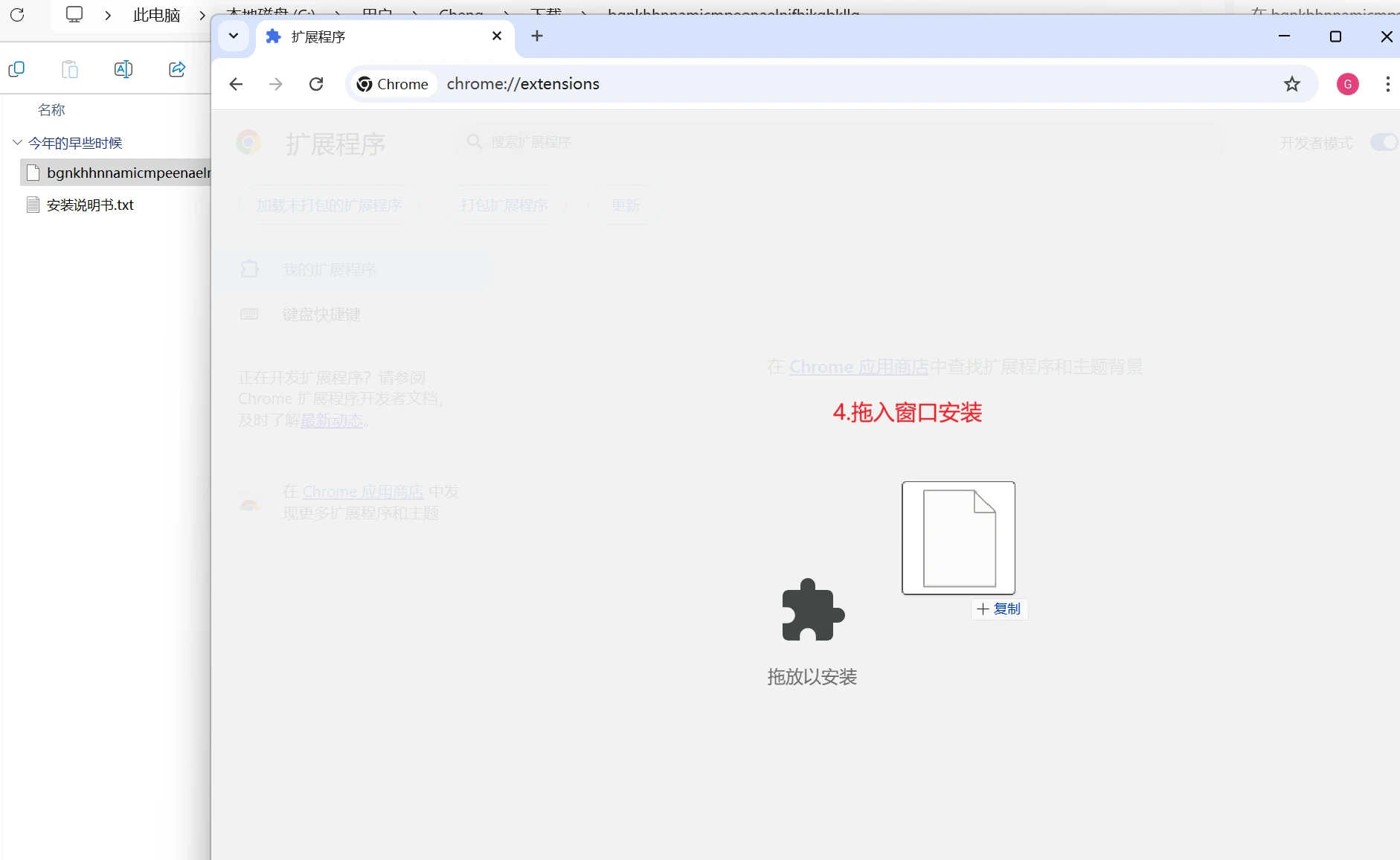
4. Drag it in, then let go.
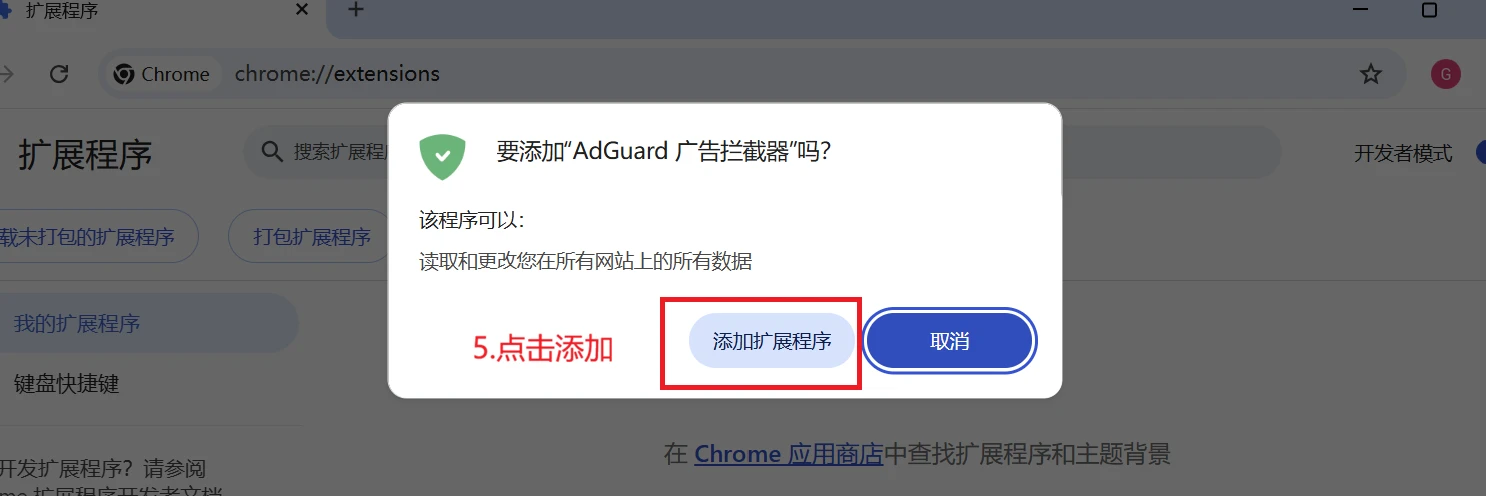
5. The browser will ask if you want to add this extension. Click "Add Extension," and it will be installed.
Install in the Edge browser
The installation process in Edge is similar. Type:edge://extensions/, enable developer mode, and drag the crx file into the browser to install it
You can also install it through Microsoft's own extension store:https://microsoftedge.microsoft.com/addons
How to Uninstall an Extension
Uninstalling is easy. Whether you're using Chrome or Edge, just open the extension management page again. Find the extension you want to remove. You'll see a "Remove" or "Delete" button. Click it, confirm the removal, and it's gone.
It also works with other Chrome-based browsers
In addition to Chrome and Edge, many browsers on the market today are based on the Chrome engine. Examples include 360 Speed Browser, QQ Browser, Sogou Browser, Cheetah Browser, and Opera. These browsers generally have an "Extensions" or "Plugin Manager" option in their settings. In these browsers, you’ll also need to enable developer mode first. Then, drag the downloaded CRX file into that section. The steps are exactly the same as described above. In some browsers, the developer mode option is buried deeper in the settings. You can try entering the browser name followed by ://extensions/ in the address bar. For example, for 360 Speed Browser, it might be 360://extensions/. Give it a try—you’ll usually be able to access it.
I’ve been switching between these download sites for quite a while. Minimal Plugins is great for quickly finding popular extensions. Crx Search is good for finding obscure ones or older versions. Huajia updates quickly. Plugin House has comprehensive tutorials. The Edge Marketplace is the most hassle-free. Just choose whichever one suits your needs. Installing too many extensions can slow down your browser, so just install as many as you need.