
1. Prepare the data source (in XLSX format)
Get your website data ready, includingWebsite Name, Website URL, Website Primary Category, Website Secondary Category, Website Description, SEO Title, SEO Meta Description, Website Introduction Article
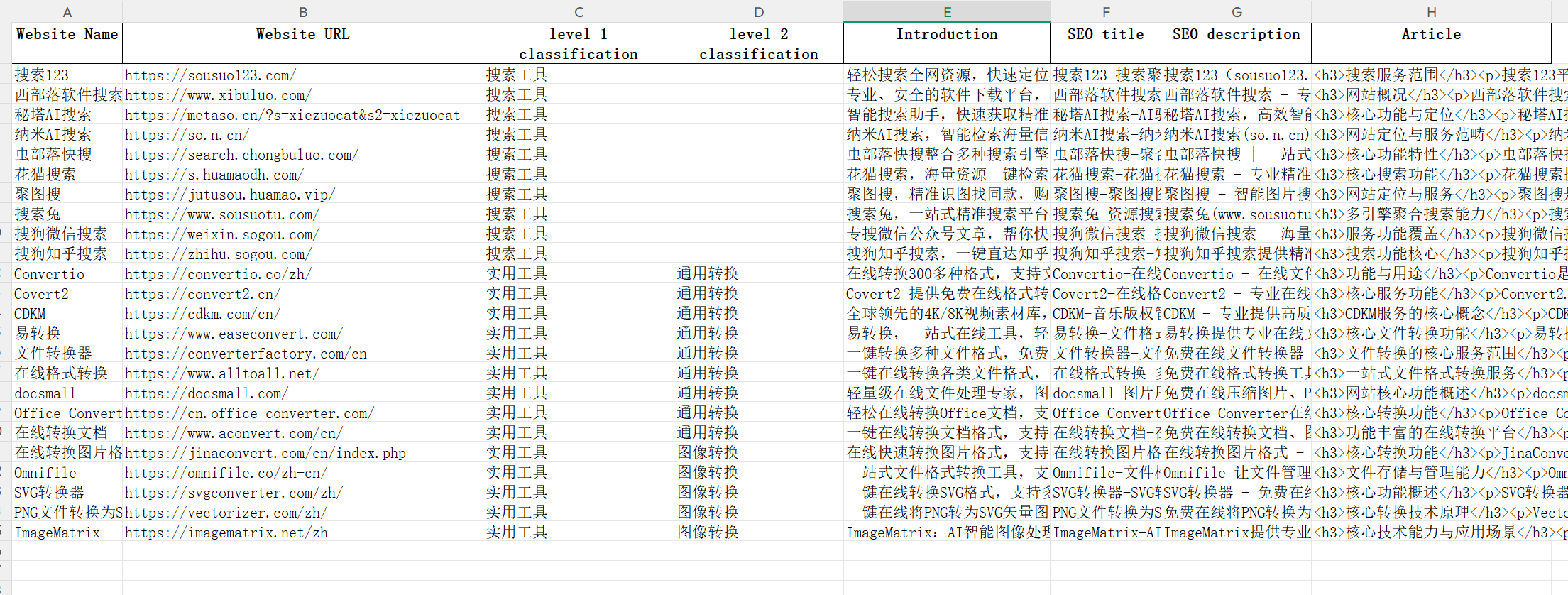
2. Import data using the WP All Import Pro plugin
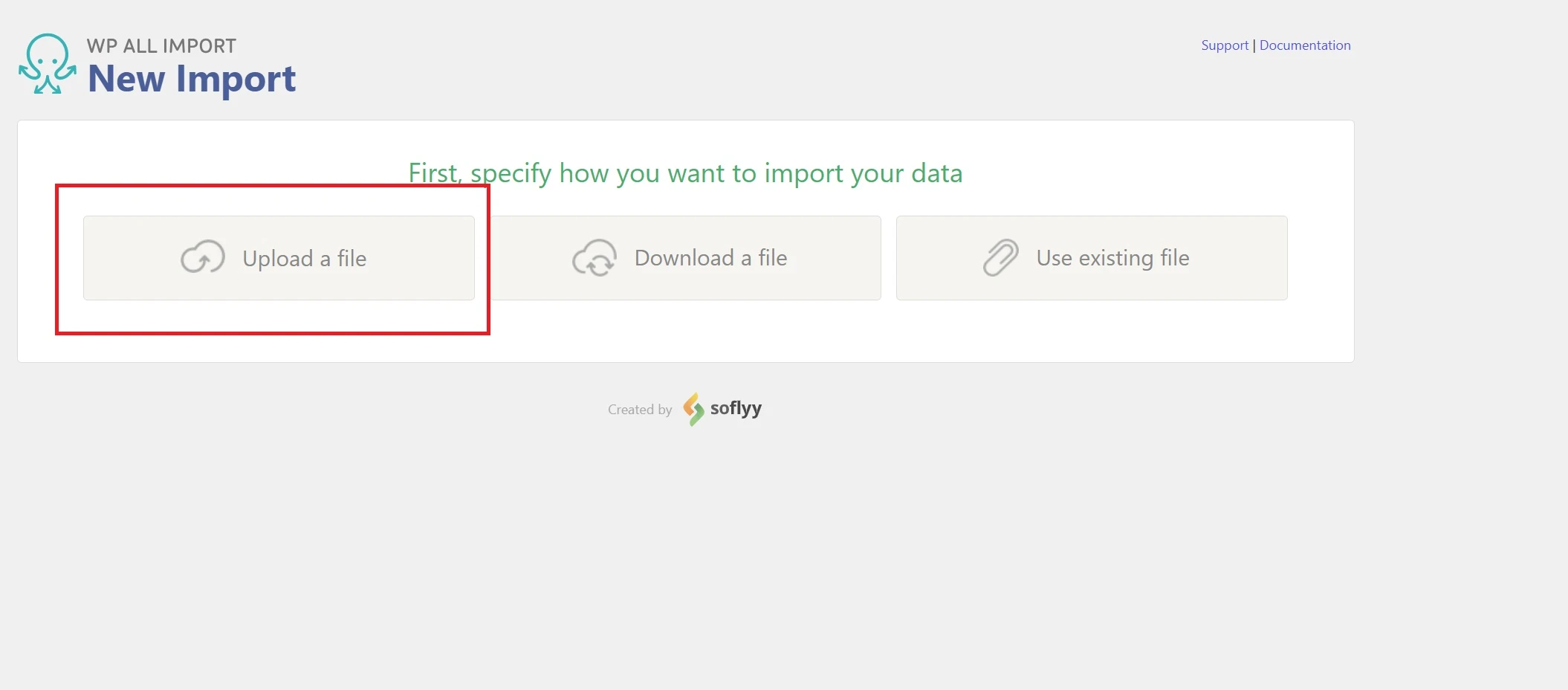
① Select on the Plugins pageUpload a file
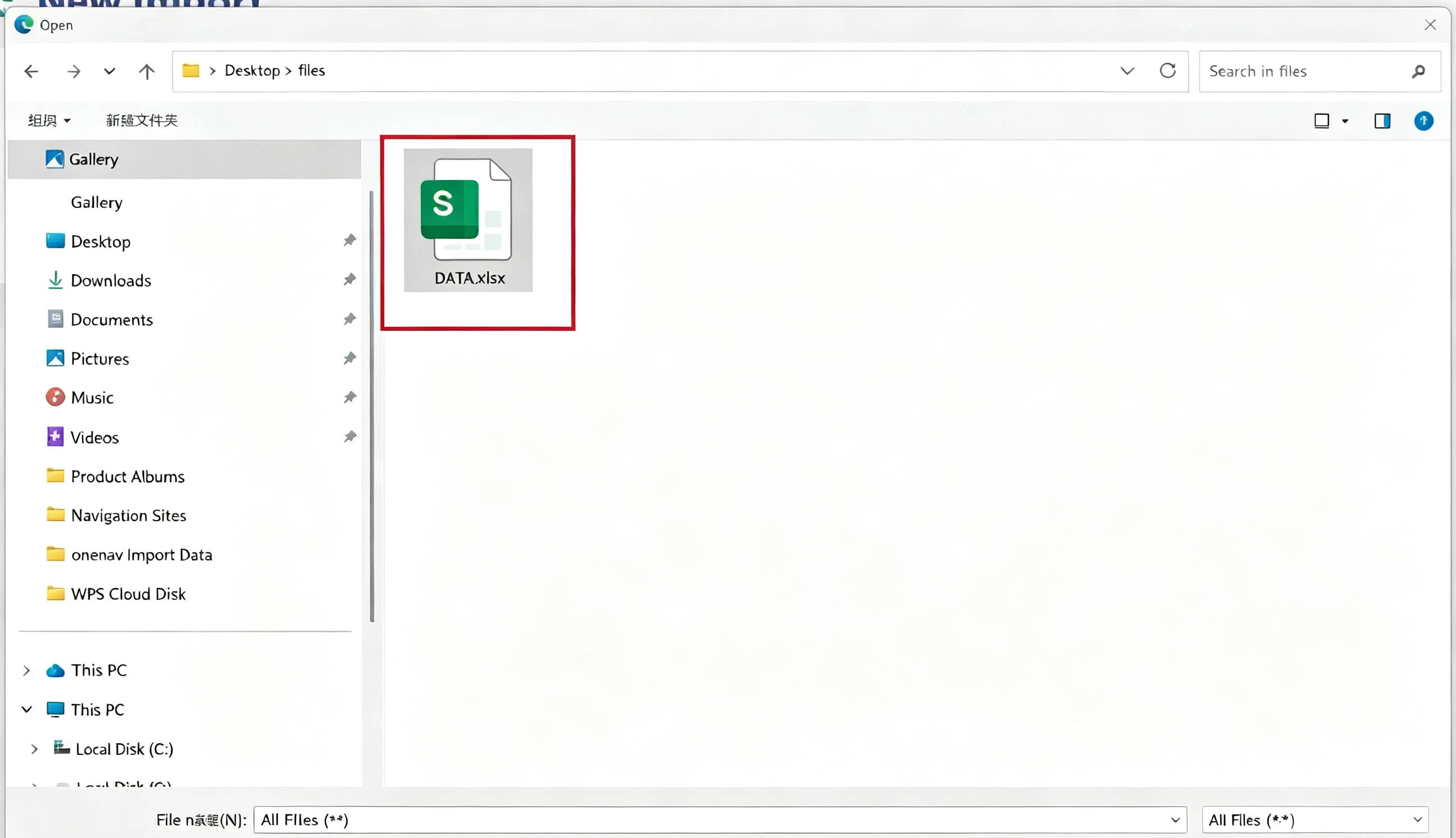
② Select and upload the prepared xlsx file
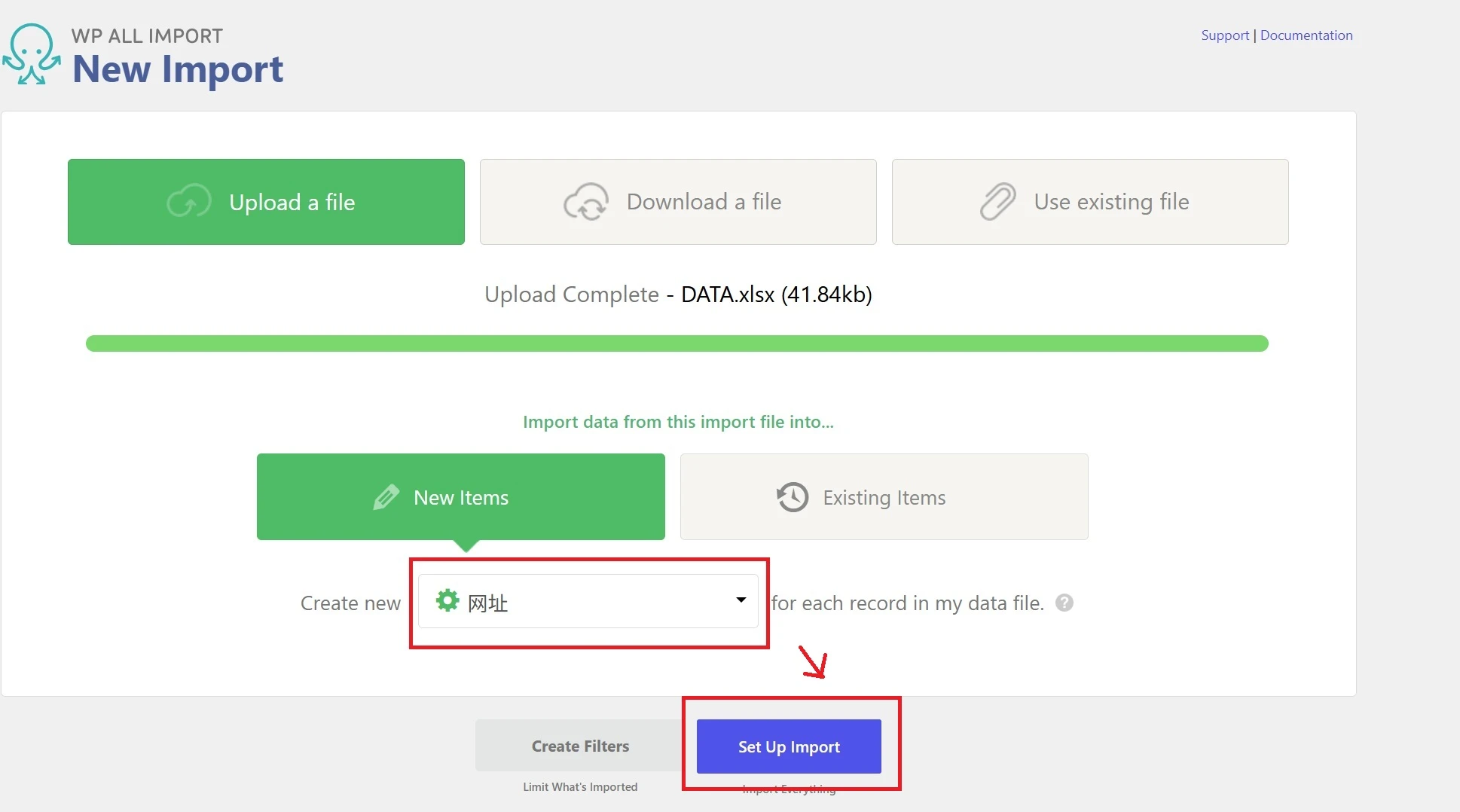
③ Select Import TypeWebsite, clickSet Up ImportImport
④ Content Template Configuration
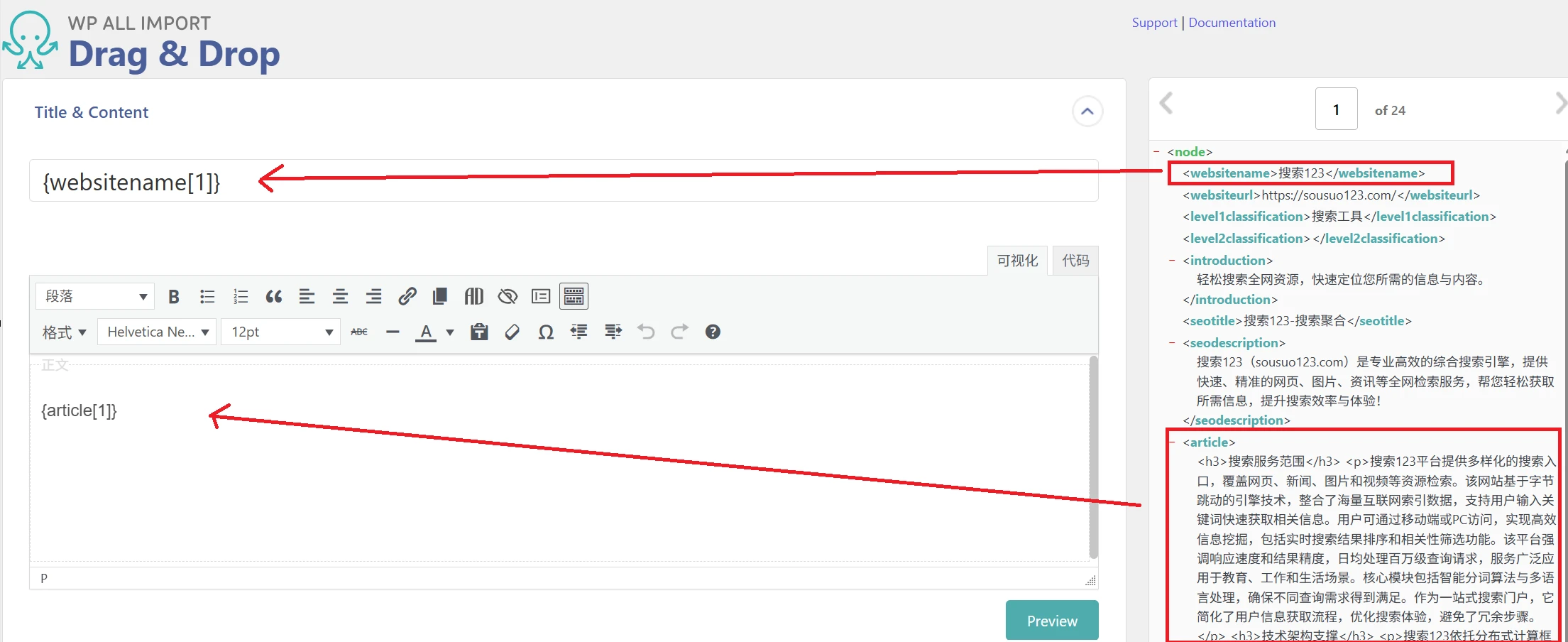
1. Title & Content Configuration
Move the one on the rightWebsite Name,Website Introduction ArticledataMove the module to the left(DragBlue Text Label)
2. Custom Fields Configuration
This part is a little more complicated; we need to add a few sets of corresponding data:
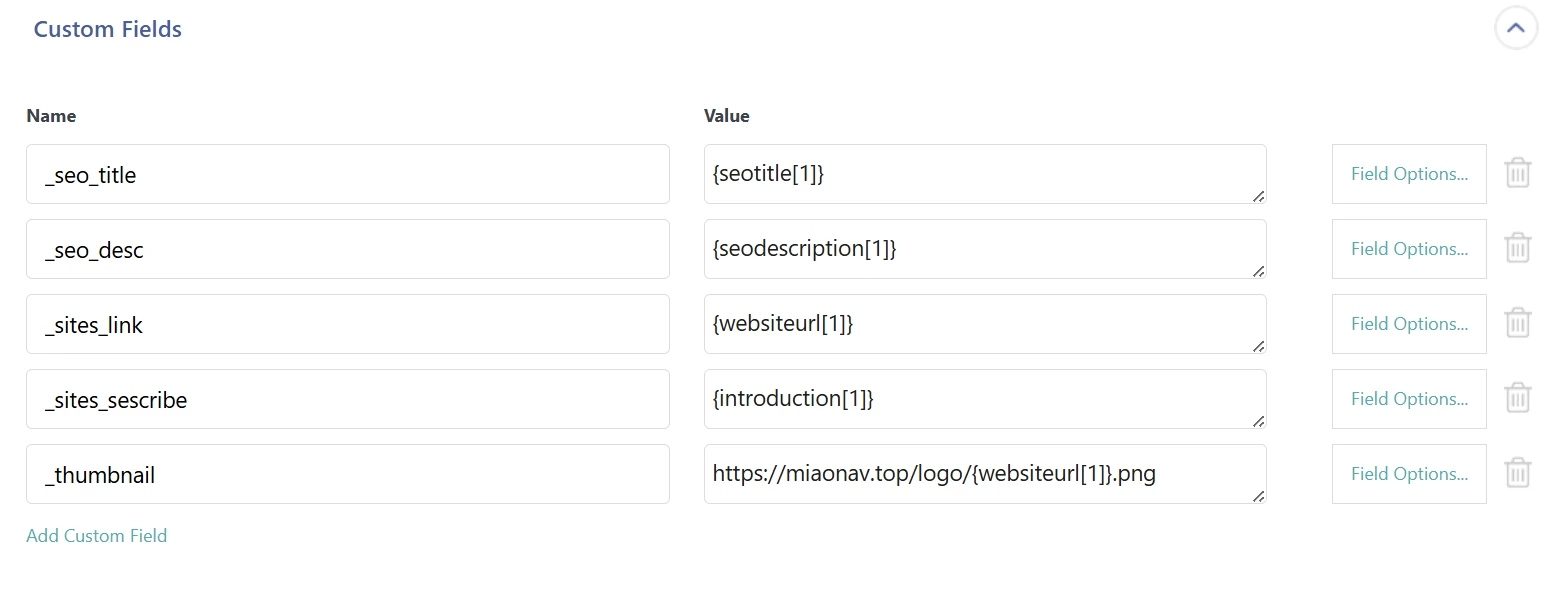
The value of "Name" corresponds to the location on the website's front end:
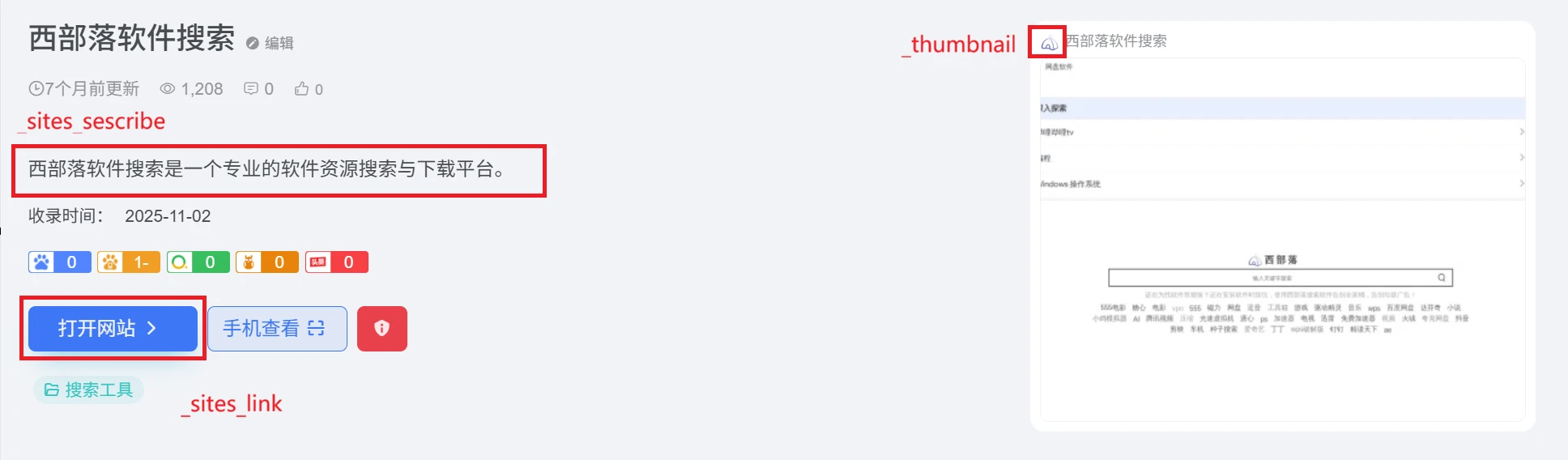

_seo_title -> SEO Title
_seo_desc -> SEO Description
_sites_link -> Website URL
_sites_sescribe -> Site Description
_thumbnail -> icon
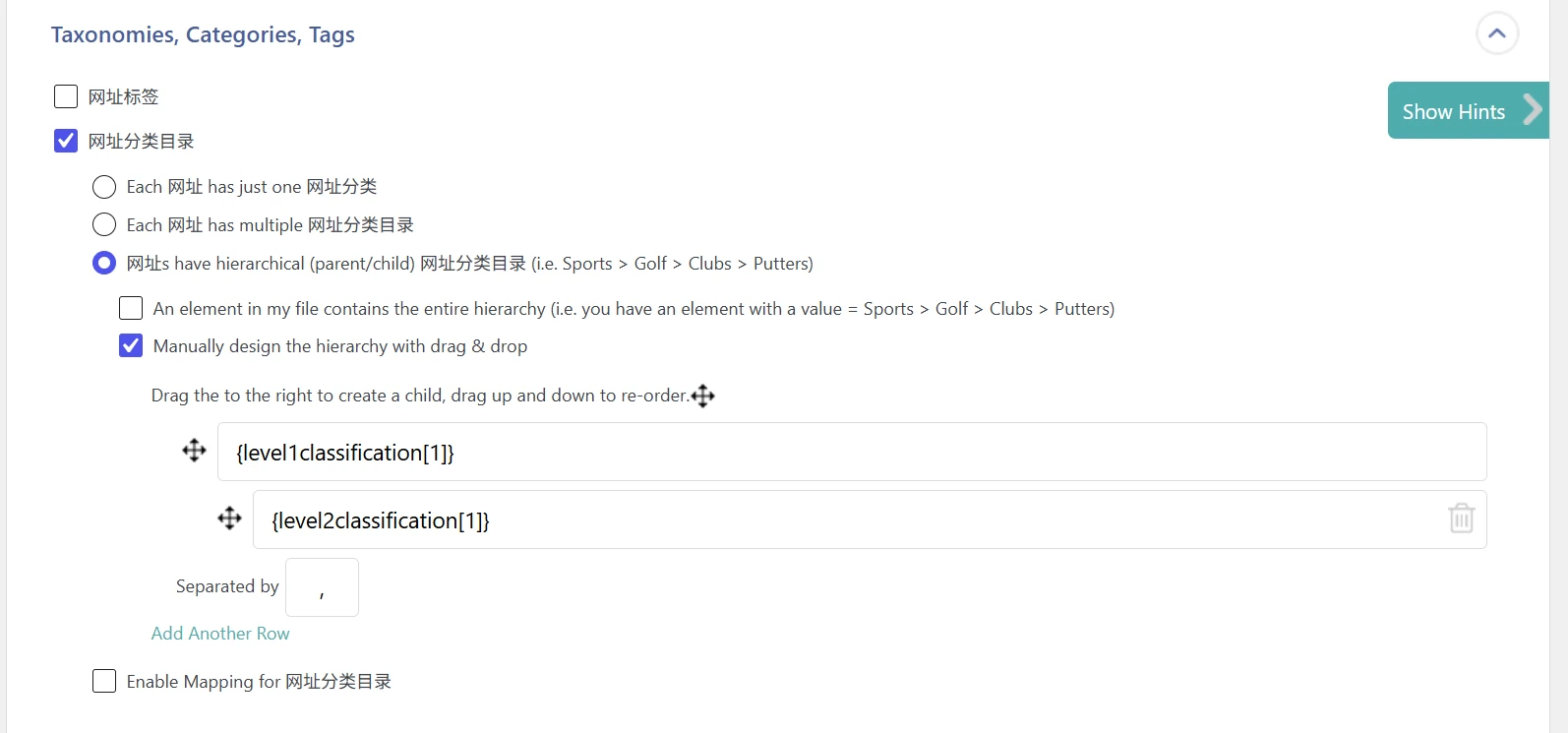
3. Taxonomies, Categories, and Tags Configuration
Following the options shown in the image below, drag and drop the Level 1 and Level 2 website categories.
⑤ Import Data
Click at the bottom of the pageContinue to Import Settings, and then simply import using the default settings
